🔍 Read the full analysis: 6 Best Thunderbolt Docks For Upgrading Your Desk Setup In 2027 on ThorstenMeyerAI.com

Prime made for students and young adults
- Fast, free delivery for dorm and study essentials
- Prime Video and Amazon Music included
- Member-only deals
TL;DR
This buying guide ranks six Thunderbolt docks for different desk setups, led by the Anker Prime 14-in-1 Thunderbolt 5 Dock for buyers seeking newer-generation bandwidth and a broad connection set. The other picks are Thunderbolt 4 models from Plugable and Dell; monitor support and charging depend on the specific computer and setup.
A buying guide from ThorstenMeyerAI.com ranks six Thunderbolt docks for upgrading a desk setup, naming the Anker Prime 14-in-1 Thunderbolt 5 Dock its best overall pick for buyers seeking newer-generation bandwidth and a wide selection of connections, as detailed in the original analysis. The list also covers five Thunderbolt 4 docks from Plugable and Dell, with the guide stressing that a dock’s ports do not guarantee that every computer can use every display or feature.
The guide’s six picks are the Anker Prime 14-in-1 Thunderbolt 5 Dock, Plugable TBT-UDM, Plugable’s Thunderbolt 4 dock listed for 100W charging, Dell Pro SD25TB4, Dell WD19TB and Dell WD19TBS. The Anker is the sole Thunderbolt 5 product in this group; the remaining five are Thunderbolt 4 models.
Its recommendations distinguish the docks by intended use rather than port count alone, including options suited to AI development workflows. The guide describes the Plugable TBT-UDM as a cross-platform Thunderbolt 4 option and the other Plugable model as a fit for buyers prioritizing 100W charging and dual-monitor use, while some buyers may also prioritize 10GbE connectivity. It presents Dell’s Pro SD25TB4 as a current Dell-oriented choice and the WD19 models as possible matches for existing Dell setups.
The two WD19 configurations are not treated as interchangeable: the guide identifies a 180W adapter for the WD19TB and 130W Power Delivery for the WD19TBS. Those figures describe different parts of the power setup, so buyers should check the laptop’s requirements and the exact dock configuration rather than infer charging performance from the model names.
The 6 picks
- 1
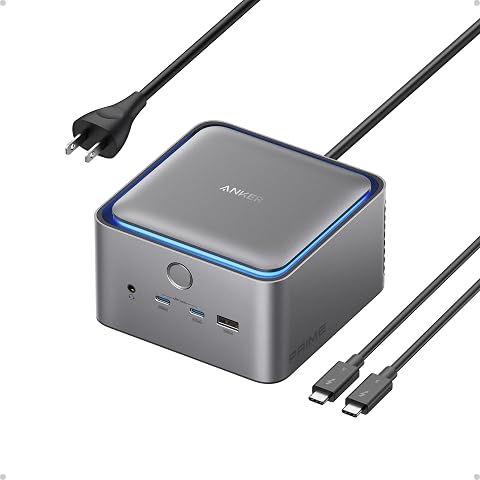 Anker Prime 14-in-1 Thunderbolt 5 Docking StationView on Amazon →
- 2
 Dell Pro Thunderbolt 4 Smart Dock SD25TB4 – USB-C Station 130W, 4 Displays 4K…View on Amazon →
- 3
 Plugable Thunderbolt 4 Dock with 100W Charging, Dual MonitorView on Amazon →
- 4
 Plugable Thunderbolt 4 Dock (TBT-UDM) for Mac and WindowsView on Amazon →
- 5
 Dell WD19TB Thunderbolt Docking Station with 180W AC AdapterView on Amazon →
- 6
 Dell Thunderbolt Dock WD19TBS with 130W Power DeliveryView on Amazon →
Match the Dock to Your Desk
The choice affects more than how many cables can be plugged in. A dock may serve as the connection point for monitors, storage, wired networking and accessories, while also supplying power to a laptop. Choosing a model that does not match the computer’s connection capabilities or power needs can leave some of its advertised features unused.
The generation difference is a central tradeoff in this lineup. Thunderbolt 5 offers newer-generation bandwidth, according to the guide, but buyers need a compatible host computer to benefit from it. For a Thunderbolt 4 laptop and a typical office setup, a Thunderbolt 4 dock may be a more fitting purchase. The guide does not provide comparative benchmark results or prices, so its rankings should be read as buying recommendations, not measured performance claims.
Display compatibility also matters independently of the number of video ports. A computer’s operating system and hardware can limit the number, resolution or refresh rate of external monitors. Checking the complete laptop-and-dock configuration before buying can help avoid a setup that does not support the intended screens.
Popular right now

Dyson V9 Motorbar Cordless Vacuum

KitchenAid Artisan 5-Qt Tilt-Head Stand Mixer, Cardamom

Roborock Qrevo 2 Pro Robot Vacuum and Mop with 20,000 Pa Suction
As an affiliate, we earn on qualifying purchases.
How the Six Picks Differ
The source says its ranking considered Thunderbolt generation, host compatibility, charging, display support and port variety, along with how clearly each dock fits a particular buyer. It gives the Anker model the top position for Thunderbolt 5 positioning and a broad connection focus, while placing the TBT-UDM and Dell Pro SD25TB4 among the compelling Thunderbolt 4 choices for different setups.
The guide ranks the WD19 variants lower, pointing to their configurations and model age as reasons to check compatibility carefully. It also includes the second Plugable dock to serve buyers focused on 100W charging and dual-monitor support. These are the guide’s assessments; the supplied material does not provide independent lab tests, full port-by-port specifications, prices or a date for each model’s release.
Its practical advice is to start with the laptop and equipment already on the desk. Check the computer’s exact port specification, list the monitors’ resolutions and inputs, and compare the laptop maker’s recommended power supply with the dock’s delivered charging power. USB-C connector shape alone does not establish Thunderbolt support, and a dock’s adapter rating is not necessarily the same as power delivered to the laptop.
“A dock’s port count alone does not guarantee that every screen or peripheral will work as expected.”
— ThorstenMeyerAI.com buying guide
Compatibility Depends on the Computer
The supplied guide does not establish that every dock will support every listed feature on every computer. Exact monitor combinations, resolutions and refresh rates depend on the host computer, operating system, connection type and any adapters in the setup. Buyers should confirm the manufacturer’s supported display modes for their specific laptop and dock.
The material also does not include a complete specification table, current prices, availability, independent test results or a detailed compatibility list for each model. The recommendations and rankings are attributed to the guide; they should not be read as a guarantee of performance or as confirmation that product specifications and availability will remain unchanged in 2027.
Check Your Setup Before Buying
Before choosing a dock, verify the laptop’s Thunderbolt or USB-C capabilities and operating-system support, then check its recommended power input. Confirm the intended monitor configuration using each screen’s resolution, refresh rate and available ports, and make sure the dock offers the connections needed for devices that will stay attached.
For buyers considering the WD19TB or WD19TBS, compare the exact power configuration with the laptop’s requirements. Those interested in the Anker should confirm that their computer can use Thunderbolt 5 features; owners of Thunderbolt 4 systems may prefer to compare the Thunderbolt 4 options. The guide does not identify a next product announcement or testing milestone, so updated specifications and availability remain matters to verify with manufacturers and retailers.
Key Questions
Which dock does the guide rank first?
It ranks the Anker Prime 14-in-1 Thunderbolt 5 Dock first, citing its newer-generation bandwidth positioning and broad connection set. That recommendation does not establish that every computer can use its Thunderbolt 5 capabilities.
Do I need a Thunderbolt 5 computer to benefit from the Anker dock?
The guide says a computer must support the relevant connection to benefit from Thunderbolt 5 headroom. Check the laptop’s exact port specification; a USB-C-shaped port does not necessarily support Thunderbolt.
Are the Dell WD19TB and WD19TBS the same configuration?
No. The source distinguishes the WD19TB’s listed 180W adapter from the WD19TBS’s 130W Power Delivery. Check the specific product configuration and laptop power requirements before buying.
Will a dock with multiple display ports run all my monitors?
Not necessarily. The computer, operating system, display connections and monitor settings can limit the number of screens and their resolution or refresh rate. Confirm the supported configuration for your exact setup.
What should I check before replacing my laptop charger with a dock?
Compare the dock’s delivered laptop charging power with the laptop maker’s recommended power supply. The dock’s adapter rating and the power delivered to the computer can be different figures, and demanding workloads may affect charging behavior.
Source: ThorstenMeyerAI.com