
Programmable coding robots for kids range from screen-free floor bots for preschoolers to Raspberry Pi-powered robot cars that teach real Python and ROS2 — and the right pick depends almost entirely on your child’s age and how much help they’ll get. For most families, the Makeblock mBot is the best overall choice: it’s affordable, durable, and grows with a child from block-based Scratch coding into Arduino and Python. If you have a preschooler, the MatataStudio Tale-Bot Pro delivers genuine programming logic without any screen time, while the ELEGOO Smart Robot Car Kit V4 is the standout for teens ready for authentic, text-based robotics. The main tradeoffs in this category are screen time versus depth, build-it-yourself kits versus ready-to-run toys, and how long a robot stays engaging as your child’s skills advance. Read on for the full breakdown of all 13 picks.

Prime made for students and young adults
- Fast, free delivery for dorm and study essentials
- Prime Video and Amazon Music included
- Member-only deals
Key Takeaways
- Screen-free robots (MatataStudio Coding Robot Set, TaleBot Pro) teach sequencing and logic to ages 3–7, but kids typically outgrow them within two years — budget accordingly.
- The biggest long-term value came from kits that support multiple coding languages: the Makeblock mBot and ELEGOO V4 both start with drag-and-drop blocks and graduate to real Python, extending useful life by several years.
- Build-it-yourself kits (TurboPi, ELEGOO V4, Sillbird) demand adult supervision and 1–3 hours of assembly — a feature for bonding, a drawback for impatient kids.
- Character-style robots (PYXEL, Ruko 1088, Ozobot Ari) win on personality and immediate play but offer shallower programming depth than car or kit-style competitors at similar cost.
- The Ozobot Evo and Ari duo splits the line’s audience: Evo’s paper-based color coding suits younger beginners, while Ari’s touchscreen block coding better fits ages 8+ who want app-driven projects.
| Educational Insights PYXEL Coding Robot |  | Best for Learning Python | Recommended age: 8 years and up | Coding languages: Blockly and Python | Connectivity: Password-protected Wi-Fi | VIEW LATEST PRICE | See Our Full Breakdown |
| Ozobot Evo Coding Robot Kit |  | Best for Flexible Learning Levels | Recommended ages: 5–11 in the title; K–12 in the description | Coding methods: Ozobot Blockly and screen-free Color Codes | Skill levels: 5 | VIEW LATEST PRICE | See Our Full Breakdown |
| Sillbird 5-in-1 STEM Robot Building Kit with Remote Control |  | Best for Building and Rebuilding | Recommended age: 8–14 years | Block count: 596 | Build models: 5 | VIEW LATEST PRICE | See Our Full Breakdown |
| MatataStudio VinciBot Coding Robot for Kids Ages 8–12 |  | Best for Expandable STEM Projects | Recommended age: 8 and up | Programming languages: Scratch and Python | Sensors: 8 | VIEW LATEST PRICE | See Our Full Breakdown |
| Thames & Kosmos My Robotic Pet: Coding Chameleon STEM Kit |  | Best Screen-Free Coding Build | Recommended age: 8+ with adult help; 12+ for independent play | Length: 15 inches | Sensors: Color sensor and infrared sensor | VIEW LATEST PRICE | See Our Full Breakdown |
| LewanSoul TurboPi Robot Car Kit for Raspberry Pi 5 | 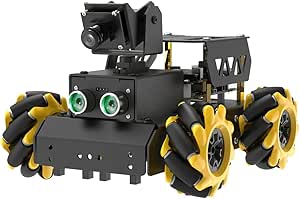 | Best for Advanced Teens | Brand: LewanSoul (Hiwonder) | Compatibility: Raspberry Pi 5 (not included) | Operating System: ROS2 | VIEW LATEST PRICE | See Our Full Breakdown |
| Makeblock mBot STEM Coding Robot Kit for Kids Ages 8+ | 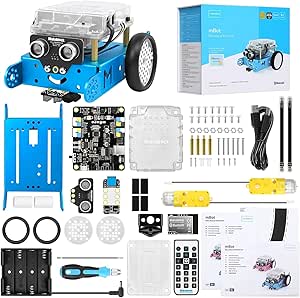 | Best Value Entry Point | Brand: Makeblock | Model: 90053 | Recommended Age: 8 years and up | VIEW LATEST PRICE | See Our Full Breakdown |
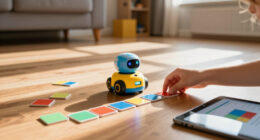
| MatataStudio Coding Robot Set for Kids 4+ |  | Best Screen-Free Learning | Brand: MatataStudio (Matatalab) | Recommended Age: 4–10 years (manufacturer: 8–10) | Coding Method: 37 physical coding blocks with image-recognition Command Tower | VIEW LATEST PRICE | See Our Full Breakdown |
| MatataStudio TaleBot Pro Screen-Free Coding Robot | 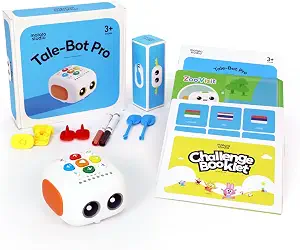 | Best for Preschoolers | Brand: MatataStudio | Recommended Age: 3–5 years | Coding Method: Screen-free button controls, up to 256 commands | VIEW LATEST PRICE | See Our Full Breakdown |
| Ruko 1088 Programmable Interactive Robot Toy |  | Best Entertainment Robot | Brand: Ruko | Height: 15.8 inches | Recommended Age: 4–9 years | VIEW LATEST PRICE | See Our Full Breakdown |
| ELEGOO UNO R3 Smart Robot Car Kit V4 with Camera |  | Best for Teens Ready for Real Electronics | Brand: ELEGOO | Model: US-EL-KIT-012 | Controller: ELEGOO UNO R3 | VIEW LATEST PRICE | See Our Full Breakdown |
| Sillbird 5-in-1 STEM Robot Building Kit with Remote Control |  | Best Value Multi-Build Option | Pieces: 488 | Recommended Age: 8+ | Build Options: Robot, dinosaur, car, tank, and more | VIEW LATEST PRICE | See Our Full Breakdown |
| Ozobot Ari Coding Robot STEM Kit |  | Best Early-Elementary Learning Companion | Brand: Ozobot | Model: Ari | Part Number: 50101ARI | VIEW LATEST PRICE | See Our Full Breakdown |
| programmable coding robots for kid | Recommended age | Brand |
|---|---|---|
| Educational Insights PYXEL Cod | 8 years and up | — |
| Ozobot Evo Coding Robot Kit | — | — |
| Sillbird 5-in-1 STEM Robot Bui | 8–14 years | — |
| MatataStudio VinciBot Coding R | 8 and up | — |
| Thames & Kosmos My Robotic Pet | 8+ with adult help; 12+ for independent play | — |
| LewanSoul TurboPi Robot Car Ki | 16 years and up | LewanSoul (Hiwonder) |
| Makeblock mBot STEM Coding Rob | 8 years and up | Makeblock |
| MatataStudio Coding Robot Set | 4–10 years (manufacturer: 8–10) | MatataStudio (Matatalab) |
| MatataStudio TaleBot Pro Scree | 3–5 years | MatataStudio |
| Ruko 1088 Programmable Interac | 4–9 years | Ruko |
| ELEGOO UNO R3 Smart Robot Car | 12 years and up | ELEGOO |
| Sillbird 5-in-1 STEM Robot Bui | 8+ | — |
| Ozobot Ari Coding Robot STEM K | 5 years and up | Ozobot |
More Details on Our Top Picks
Educational Insights PYXEL Coding Robot
PYXEL makes the jump from visual coding to Python its main advantage: built-in tutorials introduce Blockly and Python on the same robot, so kids can build on early lessons without switching to a different toy. Its password-protected Wi-Fi connection works without internet access or an app, which keeps setup focused on programming the robot. Compared with the Ozobot Evo Coding Robot Kit, PYXEL centers on screen-based lessons rather than offering Evo’s screen-free color-code option and broad lesson library. That makes it a more direct fit for families aiming toward text-based coding, but less flexible for children who want to alternate between screen and paper activities. A Wi-Fi-enabled tablet or computer is required, and the age guidance starts at eight, so it is not a first coding toy for preschoolers.
Pros:- Introduces both Blockly and Python on one robot
- Built-in tutorials support self-guided learning
- Password-protected Wi-Fi works without internet access
- Rechargeable battery avoids disposable batteries
Cons:- Requires a Wi-Fi-enabled tablet or computer
- Not suited to children under 8
- Offers less screen-free coding variety than the Ozobot Evo
Best for: Families with children 8 and up who have a Wi-Fi-enabled tablet or computer and want a guided path from Blockly into Python.
Not ideal for: Families seeking screen-free play or a robot that works without a tablet or computer.
- Recommended age:8 years and up
- Coding languages:Blockly and Python
- Connectivity:Password-protected Wi-Fi
- Internet requirement:No internet connection required
- App requirement:No app required
- Battery:Built-in rechargeable battery
- Included accessories:USB-C cord, Code Activator, and guide
Our verdict“Choose PYXEL for a guided Blockly-to-Python path if your child has a compatible tablet or computer.”
Ozobot Evo Coding Robot Kit
Evo offers two ways to give a robot instructions: children can use Ozobot Blockly on a screen or draw Color Code paths with markers. That switch makes it easier to start with hands-on experimentation and add screen-based coding when a child is ready. Five skill levels and access to more than 700 free lessons give families a wider progression of activities than the PYXEL’s built-in tutorial approach, while the included case keeps the small robot and markers together. The tradeoff is that Evo’s description does not specify a route into Python, so it may suit early coding practice better than a child ready to focus on a text-based language. Compared with the screen-free My Robotic Pet: Coding Chameleon, Evo also adds digital Blockly lessons, though its marker coding depends on having a surface and space for paths.
Pros:- Combines Ozobot Blockly with screen-free Color Codes
- Five skill levels support progression from beginner to advanced
- Includes access to more than 700 free lessons
- Comes with markers, a starter guide, and a hard-shell case
Cons:- Product information does not specify Python support
- Marker coding needs room and a suitable surface
- The age guidance differs between the title and description
Best for: Families with children in the listed 5–11 age range who want both marker-based coding and online lessons that can grow across skill levels.
Not ideal for: Families focused on Python instruction or looking for a robot that does not rely on online Blockly lessons for screen-based coding.
- Recommended ages:5–11 in the title; K–12 in the description
- Coding methods:Ozobot Blockly and screen-free Color Codes
- Skill levels:5
- Lessons:700+ free lessons
- Robot included:1 Evo robot
- Markers included:5 dual-tip Color Code Markers
- Storage:Hard-shell zip case
- Guide:Get Started guide
Our verdict“Pick Evo if you want a compact coding robot that can move between drawn Color Codes and online Blockly lessons.”
Sillbird 5-in-1 STEM Robot Building Kit with Remote Control
Sillbird puts construction at the center of its coding play: kids assemble 596 blocks into five models, then use remote or Bluetooth app control to interact with their creations. That hands-on building gives it a different draw from the ready-to-code Educational Insights PYXEL Coding Robot, which is better suited to following lessons in Blockly and Python. Sillbird’s LED expressions and sound effects make the finished robot playful, while its creative coding description points toward introductory programming activities rather than a named coding language or a structured course. The rechargeable battery keeps replacement cells out of the routine, but play lasts up to 40 minutes per charge. The water mist feature adds variety, though it means filling the robot before using that function. It fits children who want to build first and experiment with control second.
Pros:- 596 blocks build into five different models
- Combines construction with introductory creative coding
- Offers both remote and Bluetooth app control
- Rechargeable battery avoids disposable batteries
Cons:- Play lasts up to 40 minutes per charge
- Water mist feature requires adding water
- Description does not name specific coding languages
Best for: Children ages 8–14 who enjoy assembling models and want to experiment with remote and app control after building.
Not ideal for: Families prioritizing a clearly defined coding curriculum, longer sessions between charges, or a robot that needs no water for its features.
- Recommended age:8–14 years
- Block count:596
- Build models:5
- Controls:Remote control and Bluetooth app
- Features:LED expressions, sound effects, water mist, and creative coding
- Battery:Rechargeable
- Play time:Up to 40 minutes per charge
Our verdict“Choose Sillbird for a build-and-rebuild project with basic coding activities, rather than a language-focused coding course.”
MatataStudio VinciBot Coding Robot for Kids Ages 8–12
VinciBot pairs Scratch and Python with room to add hardware, making it a strong pick for children who want coding to reach beyond the robot itself. Its eight sensors, preset line-following and drawing modes, and compatibility with LEGO bricks, TECHNIC motors, and third-party modules let learners experiment with how code responds to inputs and movement. Compared with the PYXEL Coding Robot, VinciBot has more stated expansion options and a broader mix of robotics topics, including AI, IoT, and TinyML; PYXEL keeps its focus tighter on Blockly and Python tutorials. VinciBot’s battery lasts over four hours per charge, which supports longer project sessions. Its online tutorials require platform access for some activities, and the product details do not spell out included accessories, so buyers may need to check what comes in the box.
Pros:- Supports Scratch and Python
- Eight sensors and several preset operating modes support varied projects
- Compatible with LEGO bricks, TECHNIC motors, and third-party modules
- Battery runs for over four hours per charge
Cons:- Some activities and tutorials require the online platform
- Included accessories are not specified
- Expansion projects may call for compatible parts beyond the robot
Best for: Families with children 8 and up who want Scratch and Python projects that can expand with LEGO parts and compatible electronics.
Not ideal for: Buyers who want a fully self-contained, offline lesson experience or need clear accessory details before choosing.
- Recommended age:8 and up
- Programming languages:Scratch and Python
- Sensors:8
- Battery capacity:1500 mAh
- Battery life:Over 4 hours per charge
- Preset modes:Line following, precision drawing, and IR remote control
- Compatibility:LEGO bricks, TECHNIC motors, and third-party electronic modules
- Learning activities:Over 75 online tutorials and a booklet with 17 coding cases
Our verdict“Choose VinciBot for a child ready to connect coding with sensors, robot movement, and expandable hardware projects.”
Thames & Kosmos My Robotic Pet: Coding Chameleon STEM Kit
The Coding Chameleon turns programming into a physical sequence of action cards, so children can explore instructions without a tablet, computer, or software. Building the 15-inch model is part of the appeal: its color and infrared sensors, RGB lights, touch response, and moving tongue give kids visible reactions to their commands. That makes it a more tactile choice than the Ozobot Evo Coding Robot Kit, which offers marker-based coding but also has online Blockly lessons. The tradeoff is that this kit centers on assembly and a defined set of play modes rather than progression through named coding languages. The 48-page manual provides guidance, but the product recommends adult help for ages eight and up, with independent play suggested from twelve. Families should factor that build support into their choice.
Pros:- Uses physical action cards for screen-free coding
- Color sensing and touch response connect commands to visible reactions
- Three play modes add options beyond coding sequences
- 48-page manual introduces robotics and nature-inspired engineering
Cons:- Assembly may require adult help for children under 12
- Does not list a digital coding language such as Python or Scratch
- Its 15-inch build takes more space than the Ozobot Evo
Best for: Families wanting a screen-free coding activity for a child who enjoys assembling a large character robot with adult support.
Not ideal for: Children seeking Python or Scratch lessons, or younger builders expected to assemble and use the kit independently.
- Recommended age:8+ with adult help; 12+ for independent play
- Length:15 inches
- Sensors:Color sensor and infrared sensor
- Lighting:RGB LEDs
- Play modes:Coding Mode, Wild Mode, and Pet Mode
- Manual:48 pages
- Coding method:Physical action cards
- Devices or software:No screens, devices, or software required
Our verdict“Choose the Coding Chameleon for a screen-free build that teaches sequencing through physical cards and responsive play.”
LewanSoul TurboPi Robot Car Kit for Raspberry Pi 5
The TurboPi sits at the far end of this lineup’s difficulty curve, built around ROS2, Python, and a Raspberry Pi 5 rather than block-based coding. Where the Makeblock mBot gets a child rolling in fifteen minutes, the TurboPi asks its owner to source and configure a separate single-board computer first — a real hurdle, but one that pays off with genuine AI work like face detection, gesture recognition, and voice interaction. The 2-DOF camera and Mecanum wheels enable 360-degree movement and color-sorting projects that simpler kits simply can’t attempt. This pick makes the most sense for a teen who has already outgrown Scratch-style toys and wants portfolio-worthy robotics experience. Compared with the ELEGOO Smart Robot Car, it leans harder into AI education rather than basic electronics assembly.
Pros:- Runs ROS2 with full Python source code and tutorials for real AI robotics work
- 2-DOF HD camera supports advanced vision tasks like color sorting and gesture recognition
- Mecanum wheels allow omnidirectional 360-degree movement
- Includes ChatGPT integration and voice interaction
Cons:- Raspberry Pi 5 is not included, adding cost and setup complexity
- Requires significant technical knowledge that puts it far beyond beginners
Best for: Teens 16+ and motivated students who already know some Python and want a serious, AI-focused robotics platform
Not ideal for: Families buying for younger kids or anyone unwilling to purchase and set up a separate Raspberry Pi 5
- Brand:LewanSoul (Hiwonder)
- Compatibility:Raspberry Pi 5 (not included)
- Operating System:ROS2
- Programming Languages:Python, Linux
- Camera:2-DOF HD camera
- Chassis:Omnidirectional Mecanum wheels
- Recommended Age:16 years and up
Our verdict“A genuine pre-college robotics platform for older teens ready to move past toy-level coding — everyone else should start elsewhere.”
Makeblock mBot STEM Coding Robot Kit for Kids Ages 8+
The mBot earns its spot by being the least intimidating gateway into real programmable robotics for elementary-age kids. Assembly takes about fifteen minutes, and the Scratch-to-Arduino pathway means a child can drag blocks today and graduate to text code later — a growth curve the Ruko 1088, which is really an interactive toy with light programming, doesn’t offer. Line following and obstacle avoidance give it classroom-style STEM substance, and the bundled lessons and coding cards help parents who aren’t coders themselves. The tradeoff is basic hardware: compared with the TurboPi, there’s no camera or AI layer, so ambitious kids will eventually hit a ceiling. Also note that four AA batteries and a CR2025 are not included, so have them on hand before gifting.
Pros:- Builds in about 15 minutes so kids reach the fun fast
- Supports both Scratch and Arduino for a genuine coding progression
- Includes lessons, coding cards, and companion apps
- Line following and obstacle avoidance provide hands-on STEM experimentation
Cons:- Batteries (4 AA and CR2025) are not included
- Limited ceiling for advanced users compared with camera-equipped kits
Best for: Parents of kids 8+ who want an affordable, quick-to-build first robot with a clear Scratch-to-Arduino learning path
Not ideal for: Older kids or teens wanting AI features and camera-based projects — the hardware is intentionally basic
- Brand:Makeblock
- Model:90053
- Recommended Age:8 years and up
- Assembly Time:About 15 minutes
- Programming Platforms:Scratch and Arduino
- Functions:Remote control, line following, obstacle avoidance
- Power:4 AA batteries plus CR2025 for remote (not included)
Our verdict“The smartest low-friction starting point in this roundup for elementary-age coders who will actually outgrow it — in a good way.”
MatataStudio Coding Robot Set for Kids 4+
What separates the MatataStudio Coding Set from nearly everything else here is how it teaches: 37 physical coding blocks placed on a control board, read by an image-recognition tower — no screen, app, or internet anywhere in the loop. That makes it a rare fit for the 4–10 crowd where parents actively limit screen time, and unlike the Makeblock mBot, it teaches genuine concepts like sequencing, loops, conditionals, and debugging without needing a tablet. The two-sided game map and challenge booklets structure play, and the Musician, Artist, and Sensor add-ons extend the system over years. The catch is cost creep: those expansions are sold separately, and the age labeling is muddled — the box says 4+ while the manufacturer suggests 8–10, so expectations should be calibrated for the younger end being heavily parent-guided.
Pros:- Fully screen-free, app-free, and internet-free operation
- Teaches sequencing, loops, conditionals, and debugging with tangible blocks
- Expandable with Musician, Artist, Animation, and Sensor add-ons
- Rich package includes map, challenge booklets, and accessories
Cons:- Add-ons sold separately, raising the total cost of the full experience
- Inconsistent age labeling (4+ on packaging, 8–10 per manufacturer) creates confusion
Best for: Families and classrooms seeking a screen-free way for kids roughly 5–9 to learn real coding logic through tactile play
Not ideal for: Budget-conscious buyers who won’t purchase add-ons, or kids who want a robot that moves fast and battles — this is deliberate, puzzle-paced learning
- Brand:MatataStudio (Matatalab)
- Recommended Age:4–10 years (manufacturer: 8–10)
- Coding Method:37 physical coding blocks with image-recognition Command Tower
- Screen Requirement:None — no app or internet needed
- Included Components:MatataBot, Command Tower, Control Board, 37 blocks, 3 booklets, two-sided map, obstacles, USB-C cable
- Expandability:Musician, Artist, Animation, and Sensor add-ons (sold separately)
Our verdict“The strongest screen-free coding educator in this roundup for early elementary kids, provided you accept the add-on costs.”
MatataStudio TaleBot Pro Screen-Free Coding Robot
The TaleBot Pro drops the age floor lower than anything else in this roundup, targeting 3–5 year olds with big button controls instead of the block system its sibling, the MatataStudio Coding Set, uses for older kids. Sequences of up to 256 commands introduce loops and ordering, but the real hook is creative play: it draws with washable markers, sings, dances, tells stories, and records the child’s own voice — a breadth that keeps preschoolers engaged where a purely logical toy would lose them. LEGO compatibility means existing bricks become part of the robot, and support for 10 languages helps bilingual households. Compared with the Ruko 1088, it’s less flashy but far more developmentally honest for this age. The obvious ceiling: kids older than about five will exhaust its mission booklet quickly unless parents buy additional activity boxes.
Pros:- Simple button-based coding with up to 256 command sequences
- Blends coding with drawing, singing, storytelling, and voice recording
- LEGO-compatible design extends creative play
- Supports 10 languages for bilingual families
Cons:- Narrow age window — kids outgrow it by kindergarten or first grade
- Additional activity boxes are recommended for continued engagement, adding cost
Best for: Parents of 3–5 year olds wanting a first, screen-free introduction to sequencing and loops through storytelling and drawing
Not ideal for: Kids 6 and up — the command set and missions are too simple, and the VinciBot or mBot would serve them better
- Brand:MatataStudio
- Recommended Age:3–5 years
- Coding Method:Screen-free button controls, up to 256 commands
- Languages Supported:10
- Included Components:Robot, double-sided interactive map, 14-mission booklet, configuration card, 2 washable markers
- Compatibility:LEGO blocks
- Dimensions:10.28 × 11.06 × 3.5 inches
Our verdict“The right first robot for preschoolers, as long as buyers accept it’s a starter toy rather than a long-term platform.”
Ruko 1088 Programmable Interactive Robot Toy
The Ruko 1088 plays a different sport than most of this lineup: it’s a personality-driven companion first and a coding tool second. Standing 15.8 inches tall with nine flexible joints, 10 expressions, and a full menu of dancing, music, and storytelling, it delivers immediate wow-factor that a build-it-yourself kit like the Sillbird 5-in-1 can’t match out of the box. Four control modes — remote, Bluetooth app, gravity-sensor, and voice — give kids variety, and its programmable sequences offer a gentle on-ramp to logic thinking, though far shallower than the Makeblock mBot’s Scratch environment. The 100-minute rechargeable battery beats the mBot’s disposable AAs for convenience. Small annoyances matter here: it won’t charge with USB-C to USB-C cables, and a unit that arrives unresponsive may simply need a 30-minute pre-charge before first play.
Pros:- Large 15.8-inch build with 9 joints and 10 expressions feels substantial and lifelike
- Four control modes including voice commands and gravity-sensor play
- Up to 100 minutes of play per charge with a rechargeable battery
- Wide activity mix: dancing, music, storytelling, and programmable sequences
Cons:- Programming features are basic compared with true coding education kits
- USB-C to USB-C charging cables are not supported, which trips up many households
Best for: Families of kids 4–9 who want a big, expressive, showpiece robot with light programming rather than a strict STEM curriculum
Not ideal for: Buyers focused on teaching real coding skills — the programming here is shallow compared with dedicated STEM kits
- Brand:Ruko
- Height:15.8 inches
- Recommended Age:4–9 years
- Controls:2.4 GHz remote, Bluetooth app, gravity sensor, voice commands
- Playtime:Up to 100 minutes per charge
- Material:ABS
- Warranty:90 days
Our verdict“Choose this when the goal is delight and companionship with a dash of logic — not when coding fluency is the priority.”
ELEGOO UNO R3 Smart Robot Car Kit V4 with Camera
This kit stands out as the most technically demanding option in the lineup, and that is exactly its appeal. Where the Makeblock mBot arrives mostly prebuilt, the ELEGOO car makes teens solder-free but genuinely assemble the whole machine — wiring an UNO R3 board, mounting an ESP32-based camera module, and loading example programs themselves. That friction is the point: kids finish with a working understanding of Arduino-style electronics rather than just a toy. The FPV camera feed, line tracking, and obstacle avoidance feel closer to real robotics than anything the Sillbird 5-in-1 kit offers. The tradeoff is real, though — this is a weekend project with adult guidance, not an afternoon toy, and the half-year warranty is shorter than most competitors.
Pros:- Teaches real electronics assembly with an UNO R3 board, going beyond app-only coding kits
- FPV camera, line tracking, obstacle avoidance, and auto-follow give it genuine robotics depth
- Guided instructions and example programs lower the learning curve for first-time builders
- Both app and IR remote control plus a rechargeable 2000 mAh battery included
Cons:- First-time builders will almost certainly need adult help with wiring and setup
- Assembly and programming are required before any play — expect hours of build time
- Only a half-year warranty, shorter than typical for kits in this category
Best for: Teens 12 and up (or motivated 10-year-olds with a parent) who want to learn actual circuit assembly and Arduino programming, not just drag-and-drop coding
Not ideal for: Families looking for instant play out of the box — assembly and programming are mandatory before anything moves
- Brand:ELEGOO
- Model:US-EL-KIT-012
- Controller:ELEGOO UNO R3
- Camera and Wi-Fi Module:ESP32-WROVER-based
- Battery:2000 mAh rechargeable lithium-ion
- Control Methods:ELEGOO app and IR remote
- Features:FPV video, line tracking, obstacle avoidance, auto follow
- Recommended Age:12 years and up
- Warranty:Half year
Our verdict“Choose this if your tween or teen has outgrown block-coding toys and wants a true intro to Arduino-style robotics — skip it if you need something playable on day one.”
Sillbird 5-in-1 STEM Robot Building Kit with Remote Control
Where most kits in this roundup do one thing, the Sillbird delivers five builds from a single 488-piece set — a robot, dinosaur, car, tank, and more — which makes it the strongest replay value per dollar here. Compared with the ELEGOO robot car, the coding is far more basic, leaning on remote and Bluetooth app control with simple movement programming rather than genuine electronics work. But that simplicity suits the younger audience: kids 8 and up can rebuild repeatedly with progressive difficulty, something the single-purpose Ozobot Ari can’t match. The main compromise is endurance — up to 40 minutes per charge means sessions end mid-play, and teardown days will eat into that. Still, for LEGO-adjacent builders who want a coding gateway, this kit makes sense.
Pros:- Five different build options from one kit with progressive difficulty levels
- Both remote control and Bluetooth app control, including basic programming features
- Illustrated step-by-step instructions kids can follow independently
- Rechargeable battery means no ongoing disposable battery costs
Cons:- Play time caps at around 40 minutes per charge, cutting sessions short
- Requires full reassembly each time kids switch between builds
- Programming depth is shallow compared with Arduino- or block-based platforms
Best for: Budget-conscious families with kids 8+ who love building and rebuilding, and want a gentle first taste of app-based programming
Not ideal for: Kids serious about learning real coding concepts — the programming features are basic movement commands, not a coding curriculum
- Pieces:488
- Recommended Age:8+
- Build Options:Robot, dinosaur, car, tank, and more
- Control Methods:Remote control and Bluetooth app
- Play Time:Up to 40 minutes per charge
- Charging:Rechargeable
Our verdict“This pick makes the most sense for families who want maximum build variety and light coding at a friendly price, rather than a deep programming education.”
Ozobot Ari Coding Robot STEM Kit
The Ari is the only robot in this batch built around a built-in touchscreen, which lets kids as young as five interact with lessons directly on the device — no tablet pairing required, unlike the app-dependent Sillbird kit. Its accelerometer, gyroscope, and time-of-flight sensor open the door to hands-on physics activities, and the included dual-tip color code markers preserve the marker-based coding that made the Ozobot Evo popular in classrooms, layered on top of the new screen. The polycarbonate shell plus a protective zip case and screen bumper show it is designed for backpacks and car rides. The compromise: it is a self-contained learning tool, not a building kit — there is nothing to assemble or reconfigure, so tinkerers who loved rebuilding five Sillbird models may outgrow it faster.
Pros:- Built-in touchscreen enables interactive lessons without needing a separate tablet
- Marker-based color coding plus sensors makes abstract concepts physical for young learners
- Accelerometer, gyroscope, and time-of-flight sensor support real physics activities
- Includes protective zip case, screen bumper, and five dual-tip markers for on-the-go use
Cons:- Nothing to build or modify, limiting appeal for construction-minded kids
- Single-robot format offers less replay variety than multi-build kits at a similar price
- Learning content is structured, so free-form creative play is more limited
Best for: Parents and teachers of kids 5–8 who want a durable, travel-ready coding companion that blends marker coding with screen-based STEM lessons
Not ideal for: Hands-on builders and older kids who want assembly, modification, or advanced programming — this is a closed, single-robot system
- Brand:Ozobot
- Model:Ari
- Part Number:50101ARI
- Sensors:Accelerometer, gyroscope, time-of-flight sensor
- Included Components:1 Ozobot Ari robot, 1 charging cable, 5 dual-tip color code markers, 1 screen bumper, 1 protective zip case
- Recommended Age:5 years and up
- Dimensions:8.5 x 6.9 x 2.2 inches
- Material:Polycarbonate
Our verdict“The Ari is the right call for young beginners who learn best through guided, screen-plus-marker activities — families wanting open-ended building should look elsewhere.”
How We Picked
I judged every robot in this lineup against four buyer-centered criteria. Age fit and learning curve came first: a robot that frustrates a six-year-old or bores a twelve-year-old fails regardless of its hardware. Coding depth and growth path mattered next — whether a robot offers a single fixed skill level or can carry a child from icon tiles to block coding to actual Python. Build quality and durability was weighted heavily for younger-age picks, since floor bots get dropped, driven off tables, and fought over by siblings. Finally, I factored parental involvement required, including assembly time, app setup, and how much troubleshooting an adult should expect.
The ranking order reflects a simple philosophy: robots that balance durability, genuine coding progression, and reasonable independence rank highest, while single-trick toys rank lower even when they’re fun. That’s why the Makeblock mBot leads — it hits the middle of every criterion — and why niche picks like the TurboPi sit mid-pack despite impressive hardware: brilliance that requires a Raspberry Pi-literate parent limits the audience.
Factors to Consider When Choosing Programmable Coding Robots For Kids
Before picking a specific robot, it helps to understand the broader landscape of kids’ coding toys — the most common buying mistakes happen when parents match the wrong robot to the wrong stage of a child’s development.Match the Coding Method to Your Child’s Reading Level
The single biggest mistake I see is buying a text or block-coding robot for a child who can’t yet read fluently. Robots aimed at ages 3–7 use physical tiles, buttons, and color codes instead of words, which is why the MatataStudio sets work so well for early learners. Around age 7–8, when reading is solid, drag-and-drop block coding (Scratch-style) becomes accessible and far more expressive. Jumping ahead to Python-based kits before age 10 or 11 usually means the parent ends up doing the coding — which defeats the purpose. A good rule: the interface language should never be harder than the coding concepts themselves.
Screen Time Is the Central Tradeoff
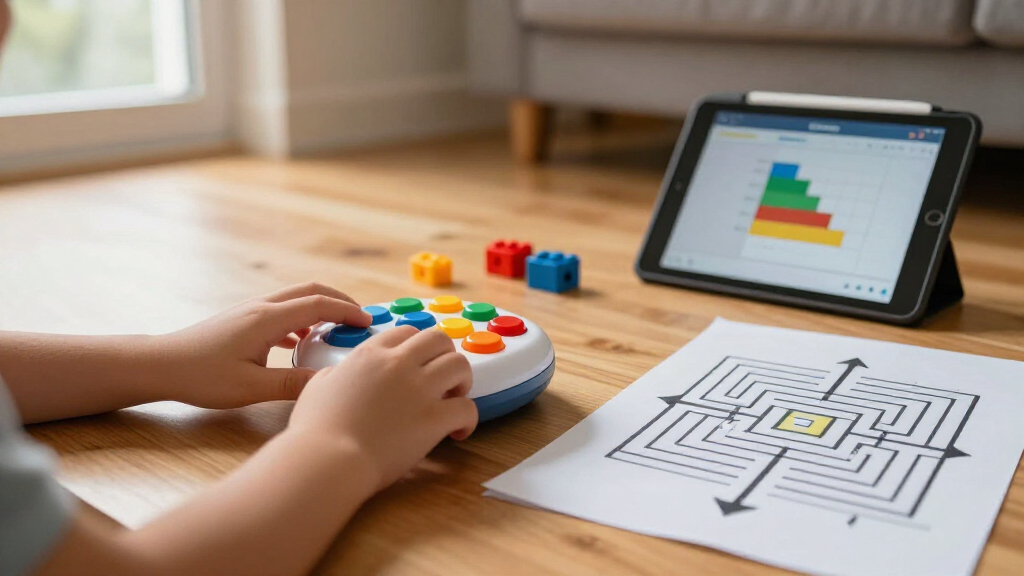
Every coding robot sits somewhere on a spectrum from fully screen-free to app-dependent, and only you know your family’s screen rules. Screen-free bots like the Tale-Bot Pro keep hands-on play central but cap out on complexity — there are only so many commands you can physically snap together. App-connected robots unlock sensors, animations, and real programming languages, but they also mean a tablet becomes part of every play session. Some parents solve this with a dedicated ‘robot tablet’ that only houses coding apps. Decide where you stand on screens before shopping, because it eliminates roughly half the options immediately.
Kit Versus Toy: Assembly Is a Feature or a Dealbreaker
Build-it-yourself kits (Sillbird, ELEGOO, TurboPi, mBot) deliver a real educational payoff — a child who assembles a robot understands its motors and sensors far better than one who unboxes a finished toy. But assembly takes anywhere from 30 minutes to several hours, involves small parts, and requires patience not every kid has. If your child loses interest mid-build, the robot becomes a closet decoration. Ready-to-run character bots like the Ruko 1088 or PYXEL start entertaining within minutes, at the cost of shallower understanding. Be honest about your child’s (and your own) tolerance for assembly before choosing a kit.
Plan for the Two-Year Ceiling
Most coding robots have a surprisingly short engagement window — often 12 to 24 months — before a child masters everything the robot can do. Robots locked to a single coding method hit that ceiling fastest. The best hedge is a robot with a documented progression path: block coding today, Python or Arduino tomorrow, add-on sensors next year. Makeblock and ELEGOO both design explicitly for this. If you’d rather not pay for longevity, accept that a simpler robot is a stage-appropriate purchase, not a lifetime one — which is a perfectly reasonable choice for a preschooler who will age into a bigger bot anyway.
Count the Hidden Costs of the Ecosystem
The sticker price rarely tells the whole story. Some robots require a dedicated tablet or smartphone with a specific OS version; Raspberry Pi-based kits like the TurboPi assume you already own or will buy a Pi board and SD card. Battery type matters too — rechargeable robots cost less over years of daily use than AA-powered ones eating through batteries. Check whether the manufacturer’s app is actively maintained, because an abandoned app turns an expensive robot into a paperweight. A slightly pricier robot from an established ecosystem (Makeblock, MatataStudio, Ozobot, ELEGOO) is usually the safer long-term bet than a cheaper no-name alternative.
One Robot or Two Kids? Plan for Sharing
Siblings change the math entirely. Character bots with a single companion-app connection tend to cause fights over the device, while robots with physical command tiles (MatataStudio’s sets) let one child build a program while another runs the robot. Kit-style robots can be built cooperatively, which is genuinely valuable for families with close-in-age kids. If you’re buying for a classroom or coding club, durability and multi-robot support matter more than any single feature — the Ozobot line is popular in schools precisely because the paper-based coding scales to many kids cheaply.
Frequently Asked Questions
What age should a child start with a programmable coding robot?
Children as young as three can use purpose-built screen-free robots like the TaleBot Pro, which teaches sequencing through big buttons and immediate physical feedback — no reading required. The sweet spot for most kids to start block-based coding is ages 6–8, once they can read basic commands and follow on-screen logic. Text-based coding with Python generally lands around ages 10–12, and kit-style robots with real electronics work best from age 8 with adult help. Starting early is fine, but starting with the wrong interface for your child’s reading level is the most common reason a coding robot gets abandoned.
Are screen-free coding robots actually teaching real programming?
Yes, though a specific slice of it. Screen-free robots teach the foundational concepts every programmer needs: sequencing, loops, debugging, and cause-and-effect reasoning — just expressed through physical tiles or button presses instead of code on a display. What they can’t teach is syntax, variables, or project complexity, which is why they’re a starting point rather than a destination. A child who masters a MatataStudio set will find block coding in Scratch or on the mBot intuitive, because the underlying logic is identical. Expect a screen-free robot to serve your child well for one to two years before a screen-based option becomes the natural next step.
Is a Raspberry Pi robot kit like the TurboPi too advanced for a kid?
It depends on the kid — and honestly, on the parent. The TurboPi’s hardware is genuinely impressive, with AI vision and ROS2 support that mirror what university robotics courses use, but ROS2 is a professional framework most adults find challenging. A motivated 12–14 year old with a technically comfortable parent can get enormous value from it, especially if they treat it as a long-term project rather than a toy. For a child who wants to play immediately or a parent who wants a low-maintenance gift, the ELEGOO V4 or mBot deliver most of the same learning with a friendlier entry point. The TurboPi rewards investment; it punishes casual buyers.
Do I need to know how to code to help my child use these robots?
For the beginner-tier robots, no — the mBot’s block coding is drag-and-drop and self-explanatory, and screen-free options require zero adult coding knowledge. Most manufacturers include guided projects that walk a child through their first programs step by step, and learning alongside your child is genuinely part of the fun. Where parental help matters more is assembly for kit-based robots and initial app or Wi-Fi setup, which occasionally involves firmware updates or account creation. By the time a child reaches Python-level kits, they’ve usually outpaced any non-technical parent anyway — at that point, the manufacturer’s community forums and tutorial library become your best support resource.
Should I buy one expensive robot or upgrade through cheaper ones over time?
For children under 7, cheaper stage-appropriate robots are the smarter play — a preschooler will extract everything a TaleBot Pro offers within a couple of years regardless of what you spend. From age 8 onward, the math flips: a mid-priced robot with a real progression path (mBot, ELEGOO V4) costs less than buying two or three simpler robots sequentially and avoids the frustration of repeated ceilings. The premium options make sense mainly for teens who have demonstrated sustained interest in coding or robotics. The mistake to avoid is buying an expensive advanced kit as a first robot to ‘future-proof’ — interest has to be proven before hardware can sustain it.
Conclusion
After comparing all 13 robots, the right choice comes down to who’s unwrapping it. For the best overall pick, the Makeblock mBot balances durability, a genuine coding progression from blocks to Python, and independence — it’s the safest bet for ages 8 and up. The best value goes to the Sillbird 5-in-1 kit, which packs five rebuildable models and remote-control fun into a budget-friendly package. For beginners and preschoolers, the MatataStudio TaleBot Pro (ages 3–5) and the MatataStudio Coding Robot Set (ages 4+) teach real logic with zero screen time. On the premium end, the LewanSoul TurboPi offers the deepest technical ceiling in this lineup for serious teens, with the ELEGOO V4 as a friendlier high-end alternative that trades ROS2 for approachability. And for kids who want personality over parts, the PYXEL and Ruko 1088 deliver immediate, character-driven play. Whatever you choose, match the robot to your child’s age and patience today — the best programmable coding robot is the one that actually gets played with past week two.
Evergreen bestsellers Picks
bestsellers
As an affiliate, we earn on qualifying purchases.